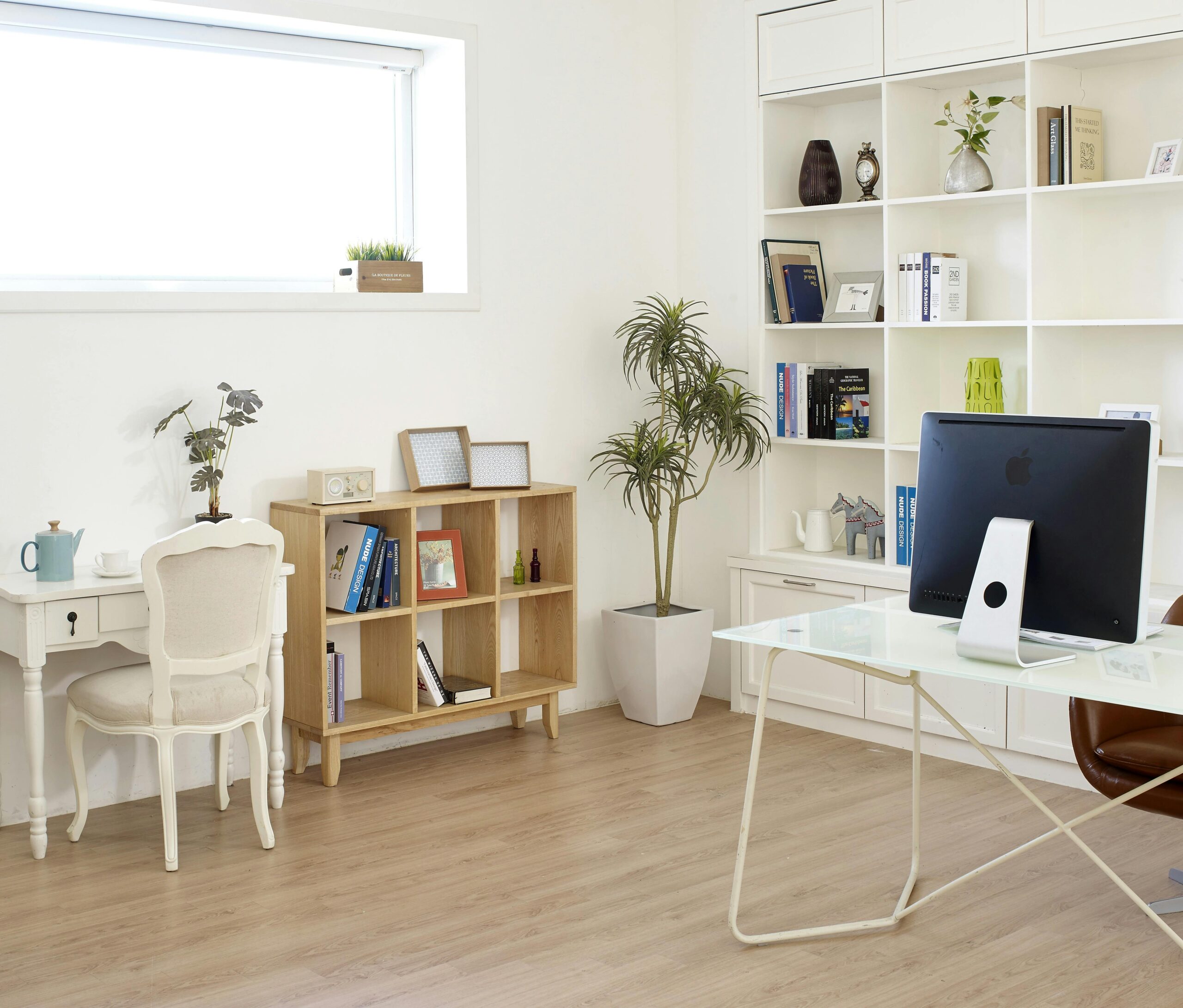
Your workspace setup directly impacts your health, comfort, and performance. Poor screen positioning leads to eye strain, neck pain, and reduced productivity—issues easily preventable with proper adjustments.

Whether you’re working from home, gaming, or spending hours browsing, understanding the science behind optimal screen distance and height can transform your daily experience. This comprehensive guide explores evidence-based recommendations to help you create an ergonomic viewing environment that supports long-term well-being.
🖥️ Why Screen Position Matters More Than You Think
The human body wasn’t designed for prolonged screen exposure. When your monitor sits at the wrong distance or height, your muscles, joints, and eyes compensate in ways that cause cumulative damage over time.
Studies show that approximately 90% of people who work on computers for more than three hours daily experience computer vision syndrome. Symptoms include dry eyes, headaches, blurred vision, and difficulty focusing. Meanwhile, improper monitor height contributes to neck pain affecting nearly 75% of office workers.
The relationship between screen positioning and productivity is equally significant. Research demonstrates that workers with ergonomically optimized setups report 17-25% higher productivity levels and significantly fewer sick days related to musculoskeletal complaints.
Understanding the Optimal Screen Distance Formula
Finding your perfect viewing distance isn’t arbitrary—it follows specific guidelines based on screen size, resolution, and visual comfort requirements.
The Arm’s Length Rule: Your Starting Point
The most commonly recommended baseline is the arm’s length test. Sit upright in your chair and extend your arm fully forward. Your fingertips should barely touch the screen surface. This typically translates to 20-26 inches (50-65 centimeters) for most people.
However, this rule requires adjustment based on several factors including screen size, resolution quality, font sizes you commonly use, and your personal vision characteristics.
Screen Size and Viewing Distance Relationship
Larger screens require greater viewing distances to maintain comfortable focal range and prevent excessive head movement when scanning information across the display.
- 24-inch monitors: 20-28 inches viewing distance
- 27-inch monitors: 24-36 inches viewing distance
- 32-inch monitors: 28-43 inches viewing distance
- Ultrawide monitors (34-38 inches): 32-48 inches viewing distance
For multiple monitor setups, position your primary screen directly in front of you at the optimal distance, with secondary screens angled slightly inward at similar distances to minimize neck rotation.
Resolution Considerations for Screen Distance
Higher resolution displays allow you to sit closer while maintaining image clarity. A 4K monitor provides sharper text and images at shorter distances compared to a 1080p screen of the same size, reducing eye strain when viewing detailed content.
If you find yourself frequently leaning forward to read text, either move your screen closer or increase system font sizes rather than maintaining poor posture.
🎯 Perfecting Your Screen Height Setup
Vertical screen positioning is equally critical as distance. Incorrect height forces your neck into unnatural angles, creating muscle tension that radiates through your shoulders and back.
The Eye Level Principle
The top of your screen should sit at or slightly below eye level when you’re seated upright with a neutral spine. This positioning allows your gaze to angle slightly downward—the natural, relaxed position for your eyes.
More specifically, your eyes should align with a point approximately 2-3 inches (5-7 centimeters) below the top edge of your monitor. This creates a viewing angle of approximately 10-20 degrees below horizontal, which research identifies as optimal for reducing eye strain and neck tension.
Common Height Setup Mistakes
Many people position monitors too high, influenced by laptop use habits or aesthetic preferences. When screens sit above eye level, you tilt your head backward, compressing cervical vertebrae and straining posterior neck muscles.
Conversely, excessively low screens force you to hunch forward, rounding your shoulders and upper back—a posture that restricts breathing and accelerates spinal disc degeneration.
Adjusting for Glasses and Bifocals
If you wear progressive lenses or bifocals, lower your screen position further. These glasses require head tilting to access different focal zones. Positioning your monitor lower prevents the chronic neck extension that bifocal wearers often develop.
Single-vision computer glasses calibrated for your specific screen distance can eliminate this compromise, allowing standard screen positioning while maintaining clear vision.
Laptop Users: Special Considerations and Solutions 💻
Laptops present unique ergonomic challenges because the screen and keyboard are permanently connected, making it impossible to optimize both simultaneously.
The Laptop Height Dilemma
When your laptop sits flat on a desk, the screen typically sits far too low, forcing neck flexion. Raising the laptop improves screen height but elevates the keyboard to an uncomfortable typing position that strains your wrists and shoulders.
The solution requires separating these components. Use a laptop stand to elevate the screen to proper height, then connect an external keyboard and mouse at desk level. This configuration provides laptop portability while maintaining desktop ergonomics.
Mobile Laptop Setups
When working in varied locations without external peripherals, minimize damage by taking frequent breaks, varying your posture, and limiting continuous laptop sessions to under two hours when possible.
If you regularly work from cafés or travel frequently, invest in a portable laptop stand. Many compact models fold to pocket size yet provide significant ergonomic improvement over flat desk placement.
Creating the Complete Ergonomic Viewing Environment
Screen position is just one element within a comprehensive ergonomic system. Optimizing related factors amplifies the benefits of proper screen placement.
Chair Height and Desk Relationship
Your chair height determines your eye level, which in turn defines optimal screen height. Adjust your chair so your feet rest flat on the floor with thighs parallel to the ground. Your elbows should bend at approximately 90 degrees when typing.
If your desk is too high for this position, use a footrest to support your feet while raising your chair to comfortable keyboard height.
Lighting and Glare Management
Position your screen perpendicular to windows rather than directly facing or backing them. This prevents glare and excessive brightness contrast that forces your pupils to constantly adapt, causing fatigue.
Ensure ambient lighting roughly matches your screen brightness. Working on a bright screen in a dark room strains your eyes as they repeatedly adjust between extreme brightness levels when you glance away.
The 20-20-20 Rule for Eye Health 👁️
Regardless of perfect screen positioning, prolonged focusing at a fixed distance causes eye muscle fatigue. Every 20 minutes, look at something 20 feet away for 20 seconds. This simple habit allows your focusing muscles to relax and prevents accommodation spasm.
Consider using break reminder apps that prompt you to rest periodically. These tools become particularly valuable during intense focus periods when you lose track of time.
Measuring and Testing Your Current Setup
Objective measurement helps identify specific adjustments needed rather than relying on subjective comfort alone, which often normalizes to poor positions over time.
Self-Assessment Checklist
Evaluate your current setup against these criteria:
- Can you maintain upright posture without leaning forward or backward?
- Does your neck stay in neutral alignment without tilting up or down?
- Are your shoulders relaxed rather than elevated or hunched?
- Can you read screen text comfortably without squinting?
- Do you experience eye fatigue, headaches, or neck pain during or after work?
If you answer negatively to any question, adjustments are necessary. Take photographs of yourself working from various angles to identify postural compensations you might not feel consciously.
Using Apps and Tools for Optimization
Several applications help optimize your viewing environment. Display calibration tools ensure proper brightness and contrast settings that reduce eye strain without compromising visibility.
Blue light filtering applications adjust screen color temperature throughout the day, reducing the alertness-disrupting blue light exposure during evening hours while maintaining natural daytime viewing.
Advanced Configurations for Specialized Needs
Different work types demand modified approaches to screen positioning.
Dual and Triple Monitor Arrangements
Position your primary monitor directly in front following standard guidelines. Place secondary monitors as close as possible to the primary screen with minimal bezel gaps, angled 30-40 degrees inward.
If you use two monitors equally, position them symmetrically so the gap between them aligns with your centerline. This prevents favoring one side and developing asymmetrical neck strain.
Gaming Setups and Immersive Displays
Gaming often involves larger screens and longer continuous sessions. Consider slightly increased viewing distances for large gaming monitors to reduce the eye movement range required to see the entire display.
Curved ultrawide monitors naturally guide proper viewing distance by their design. Position yourself so you’re centered on the curve with the screen edges equidistant from your eyes.
Creative Work: Design, Video Editing, and Photography
Color-critical work requires additional considerations. Professional-grade monitors with proper calibration should be viewed under controlled lighting at distances that allow accurate color perception—typically 24-32 inches for most professional displays.
Reference monitors used for final color grading often require specific viewing distances recommended by manufacturers to maintain accurate color representation.
🔧 Practical Solutions for Common Workspace Limitations
Not everyone has complete control over their workspace. These strategies help optimize imperfect situations.
Small Desks and Limited Space
When desk depth restricts proper viewing distance, consider monitor arms that extend screens away from walls or use corner desk configurations that provide additional depth diagonally.
Wall-mounted monitors offer another solution, allowing precise height and distance adjustment independent of desk constraints.
Budget-Friendly Ergonomic Improvements
Professional monitor arms and adjustable desks represent ideal solutions but aren’t always financially accessible. Books, boxes, or dedicated monitor stands from economical sources provide effective height adjustment at minimal cost.
Prioritize getting screen height correct first, as this typically causes more immediate discomfort than suboptimal distance.
Hot Desking and Shared Workspaces
When sharing workstations, quickly adjust available elements to approximate good positioning. Most monitors allow tilt adjustment even without height flexibility. Adjust chair height to compensate for fixed monitor positions when necessary.
Bring a portable laptop stand if you regularly work in varied locations. These investments pay dividends through reduced discomfort and maintained productivity regardless of where you work.
Long-Term Health Benefits of Proper Screen Setup 🌟
The advantages of correct screen positioning extend far beyond immediate comfort, providing cumulative health protection over your career.
Preventing Computer Vision Syndrome
Proper screen distance and height significantly reduce the incidence and severity of digital eye strain. By maintaining optimal viewing geometry, your eyes work within their natural comfort range rather than constantly adapting to awkward angles and distances.
This preventive approach is far more effective than treating symptoms after they develop, potentially avoiding prescription eyewear needs or more serious vision problems later.
Protecting Musculoskeletal Health
Chronic neck and back problems develop gradually from accumulated microtrauma. Each day of poor posture contributes incrementally to degenerative changes in spinal structures, muscle imbalances, and chronic pain patterns.
Ergonomic screen positioning interrupts this progression, allowing your body to maintain natural alignment patterns that distribute loads appropriately across skeletal structures rather than stressing specific vulnerable points.
Productivity and Mental Clarity
Physical discomfort constantly taxes mental resources. Even when you’re not consciously aware of strain, your brain processes these signals, reducing cognitive capacity available for your actual work.
Studies demonstrate that workers in ergonomically optimized environments report better focus, fewer distractions from physical discomfort, and improved mood compared to those in poorly configured spaces.
Maintaining Your Optimized Setup Over Time
Creating the perfect configuration is only half the challenge—maintaining it requires ongoing attention as circumstances change.
Regular Reassessment
Evaluate your setup quarterly or whenever you notice discomfort patterns emerging. Bodies change, equipment shifts, and work tasks evolve, all potentially requiring position adjustments.
Vision changes particularly impact optimal viewing distance. After getting new prescription eyewear, reassess and adjust screen distance to match your updated visual needs.
Preventing Setup Drift
Workstations gradually shift from optimal configurations through minor daily adjustments—moving a keyboard slightly, tilting a screen for temporary glare reduction, or repositioning a monitor to accommodate a guest.
Mark ideal positions with small tape indicators on your desk or take reference photos of your optimized setup. These reminders help you quickly restore proper configuration after temporary changes.
Your Screen Setup Action Plan 📋
Transform your workspace systematically using this implementation approach.
Start by measuring your current screen distance and height against recommended guidelines. Document what you find with measurements and photos to track improvements objectively.
Make one adjustment at a time, allowing several days to adapt before changing additional elements. Your body needs time to adjust to new positions, even when those positions are objectively superior.
Address height first since it typically causes more immediate problems, then refine distance. Finally, optimize surrounding factors like lighting and break schedules.
Track symptoms in a simple journal noting daily headaches, eye fatigue, or musculoskeletal discomfort. This data helps identify which adjustments provide the greatest benefits for your specific situation.

Embracing Screen Wellness for Lasting Performance
Optimizing your screen distance and height represents one of the highest-return investments you can make in your workspace. The modifications require minimal cost and effort yet deliver substantial benefits to your health, comfort, and productivity.
Rather than viewing ergonomics as sacrificing convenience for health, recognize that proper setup enhances your capability to perform at your best sustainably. Discomfort and fatigue are your body’s signals that current conditions aren’t sustainable long-term.
Start with the foundational principles outlined in this guide, then refine based on your body’s feedback. The perfect setup is ultimately the one that allows you to work comfortably and productively for hours without pain, strain, or fatigue—a goal entirely achievable with thoughtful attention to screen positioning.
Your workspace should support your success rather than undermine it. Take control of these critical but often overlooked factors, and experience the difference that proper screen positioning makes in your daily digital life.